


A Step-by Step Tutorial for Microsoft’s Free Video Editing Software
Have you ever spent hours squinting at a computer screen, quietly cursing at a date/time stamp that won’t behave? It’s a trying task.
After lots of trial and error, I’ve finally found a few tricks that will give you a full digital copy of the video with date and time stamp, without having to alter any files—thus keeping you clear of legal challenges.
In this tutorial, you’ll see how to easily edit video with Microsoft’s free software, Windows Live Movie Maker, produce a video with date and time stamp visible, and play and burn the DVD. (If you don’t have Windows Live Movie Maker you can download it for free from Microsoft here.)
This procedure works for digital or analog video cameras—anything you can play and record on your DVD recorder.
- Turn your DVD recorder on and insert a blank DVD R or DVD RW disc into your recorder and format* it if necessary. *Do NOT format on your computer or you won’t be able to record on it. (DVD RW is re-writable – it is a little more expensive, but you can record over and over on the same disc. DVD-R and DVD+R are the same things. The –and + have to do with the rating of the machine they are being played on—both will play and record on a computer.)
- Get your handheld camera ready to play the video selection you want to record.
- When DVD recorder is set and ready, start recording.
- Then start the handheld playing the video. Be sure to clear any camera-setting images off the screen so they are not being recorded.
- Let the camera play as the recorder records. If you make a mistake, just rewind the video and let the recording continue—you can edit later.
- After your camera has played your chosen video selection, stop recording. Your recorder will then want to close out the DVD, so just follow any instructions it gives you.
- Take the newly burned DVD out of the recorder.
Next, you’ll most likely want to edit the video you just recorded onto the DVD:
- Put the DVD into your computer’s DVD drive. If the DVD starts playing, stop the player and close it.
- Go to “my computer” and select the DVD drive. (Don’t double click it, or it will start playing again. Just single click and highlight it.)
- You should see two files on the DVD: Video_RM and Video_TS
- Copy and paste these files into a file on your computer. (I usually put them into the client file so I can easily find both the edited and the full video.) For longer videos, it may take several minutes for the file to copy over.
- Once the copying process has completed, remove the DVD from the computer drive.
- Go to the file where you just pasted the Video_RM and Video_TS files and open (double click) the Video_TS file.
- You will see several different items in this file, but the one(s) you are concerned with will be title VTS_01_1, VTS_01_2, etc. Each of these files will correspond to the number of video clips you recorded onto the DVD.
- You may want to rename the files here before you get started—to help you keep track of what’s what. (For this demo, I’ll rename VTS_01_1 to kc_1.)
- Highlight (single click) the video clip kc_1. Now right click on kc_1 and the submenu will appear.
- Select “open with” and then “Windows Live Movie Maker”.
- WLMM will now open and load the video you just selected.
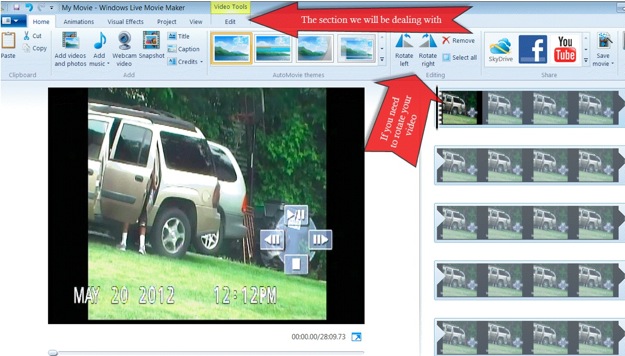
12. Your window may not look exactly like this, but it should be similar. You can adjust the size of the interior windows so that more or fewer clip frames are visible. If you shot your video sideways or upside down, you can rotate it here.
13. Click on “edit” on the toolbar under “video tools.” Your window should now look like this:
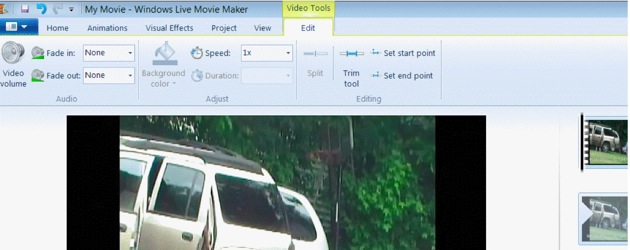
14. Here are the main editing tools you’ll need:
- The black line at the beginning of the video clips is your cursor. You can move it with your mouse to any point in the video clip.
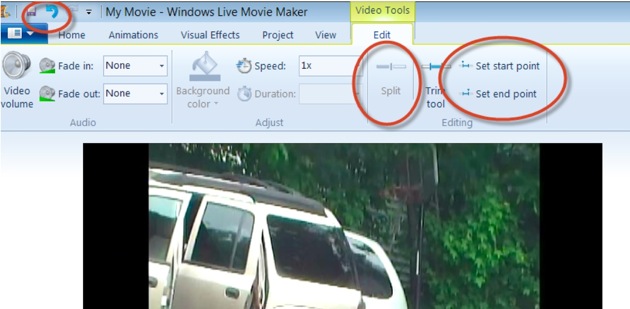
- “Split” on the tool bar is what you’ll use to cut the sections of the video clip that you want to delete.
- “Set start point” and “Set end point” can be used for new start and end points on a particular clip.
- “Undo” is your best friend.
15. You can play the video with the control underneath to see what you need to edit out. For greater fine tuning, I suggest moving the video along with the cursor (black line).
16. To edit a section out, place the cursor at the beginning of the section you want to remove and click “Split” on the toolbar. This will separate the video clip into another section.
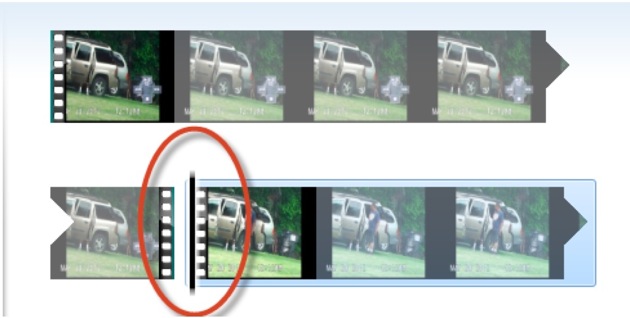
17. Do the same thing at the end of the section you want to delete. ***Make sure you move the cursor to the section you want to delete.***
18. Once the cursor is in the section you want to delete, just hit the delete button on your keyboard (or do it with your mouse). If you make a mistake, remain calm. Your best friend, the “undo” button, lives at the top left of the window and can save your day.
19. You can also use the “Set start point” and “Set end point” if you know you want everything before or after deleted in this clip.
20. Repeat these same actions for any sections you want to delete from your video.
21. If you have more than one clip you want to edit, you can add them anytime you like. I suggest adding them in the order you want them to appear on the final DVD. Everything you import into a single project will be saved as one clip; so if you don’t want them together you’ll have to import them as separate projects. You can put more than one project on a DVD.
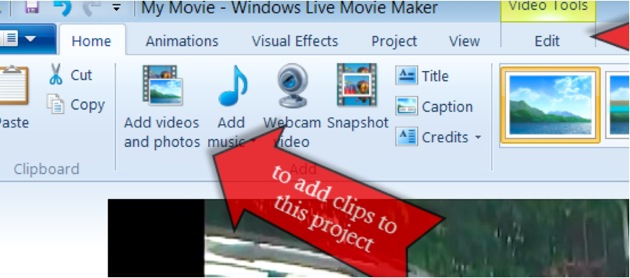
22. Once you are finished editing your video, you’re ready to save it. I strongly suggest saving the project first so that you can easily make additional edits if necessary without having to redo everything. You do this like you save any other file: Go to file >> save project as >> etc.
23. Now, burn your new edited video to DVD for your client by selecting file >> save movie >> burn DVD (or for computer if you want to put it on a thumb drive or transfer via computer).
24. Follow the instructions to burn a DVD as you normally would. The file saves as a .wmv (Windows Movie Video) file and is pretty universal. If you need to convert it to an .mpeg you can easily do that with any free video converter software.
If you have any questions, please feel free to email me at kc@pipronet.com
About the Author:
Kelly Callahan is a Virginia private investigator in Virginia. She has a B.S. in Criminal Justice as well as special training in evidence technology, computer science and Web design. She’s honed her problem-solving abilities in a wide array of jobs, from supervising a maximum security jail (at the age of 20) to working several years as an Air Traffic Controller. Kelly considers herself to be a problem solver, combining her knowledge and skills to get solutions. Visit her website at http://piofva.com/